

That little guy...
/As you may recall, my problem was that I didn’t want to redraw the little construction worker man in my original sketch for the cover of the Backstreet Arts &… Zine, so I scanned him and began tweaking the file so I could just drop him into the rest of the sketch when the time came. (For the record, I am using Pixelmator Pro.)
Here were my thoughts:
First, tweak the color adjustments to make the pencil lines as dark as possible.
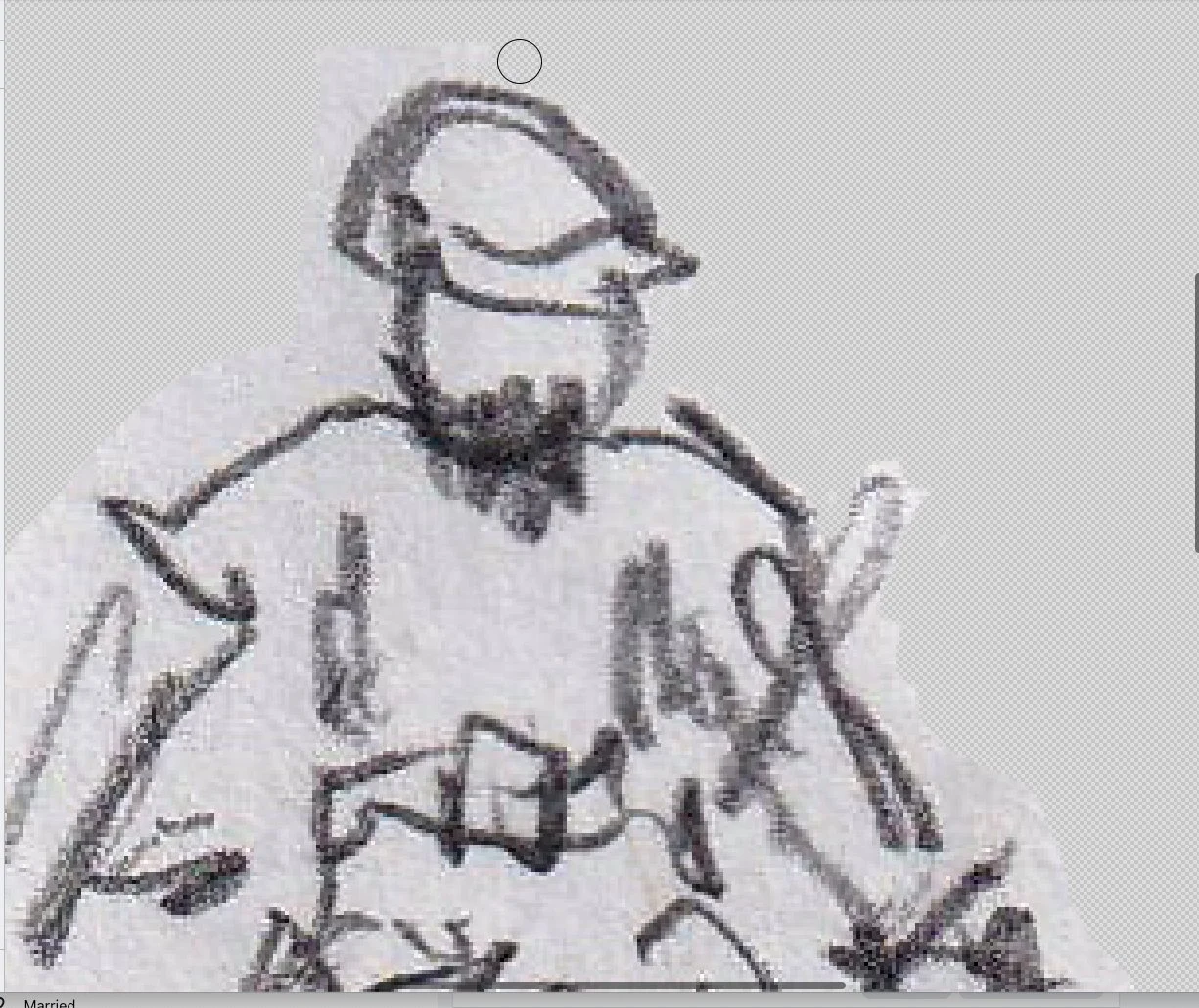
I began to use the eraser tool to get rid of the “paper” around the sketch, but you will see that that was a little difficult to see and execute clearly.
The solution was to create another layer, fill it with blue, and send it behind the sketch.
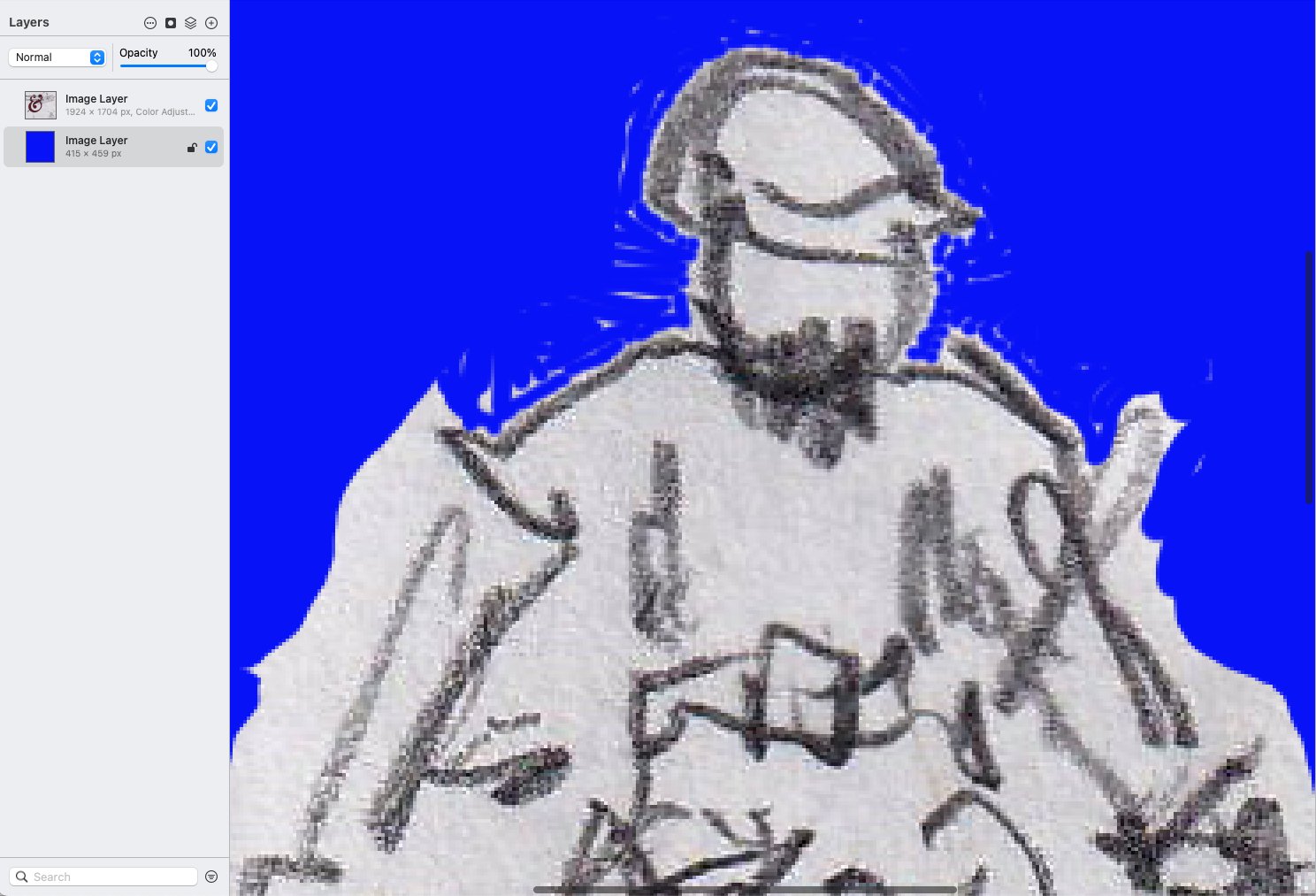
You can see where I missed some bits, so the colored background was a great idea.
Have some tips on this strategy:
First of all, I think we can all agree that this might have been a little easier if I had dragged out my graphics tablet and used a pen to do the erasing rather than my mouse. But here we are.
If you’re using your mouse, click on the edges, bit by bit, rather than trying to use strokes. It will save you a lot of ‘undo’ actions.
Once you’ve erased the edges of the sketch, then use your lasso tool to capture chunks of the paper and delete them.
Any strokes that you choose to make with the eraser tool, remember to make them short and away from the sketch.
Finally, and this took me one export and trial to realize this, export the file as a .gif, not a .jpg — in a .jpg, that background you so carefully erased just shows up as opaque white. The .gif makes that area transparent. (Hide the blue background first.)
The results so far:
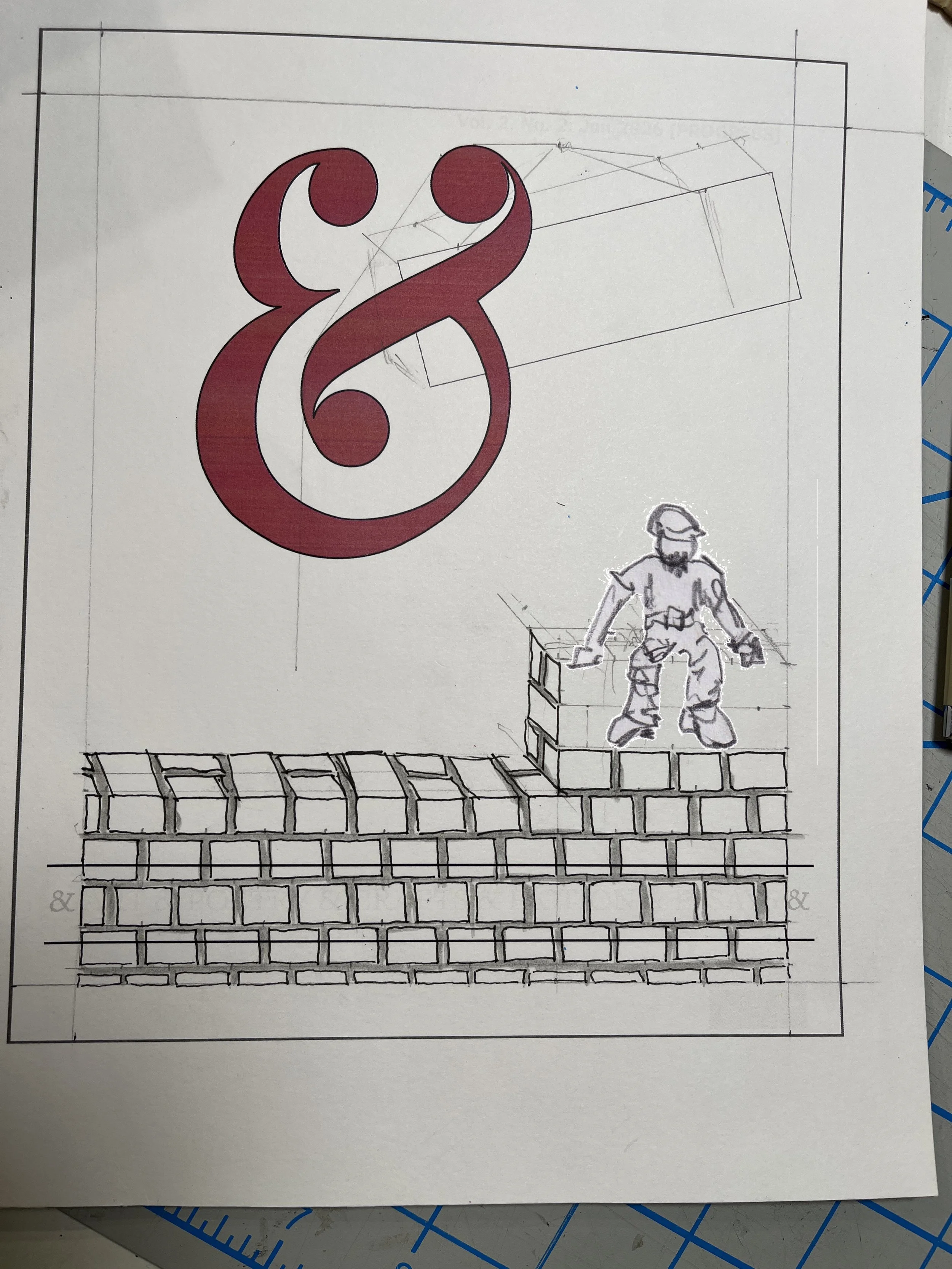
I went back in and, using the Color Adjustments Tool, bumped the Highlights to 100% and took the Brightness down to -50%.
NEXT: Finishing the wall, and then… the ropes. I have until Monday to finish this.
